How to access the add-in
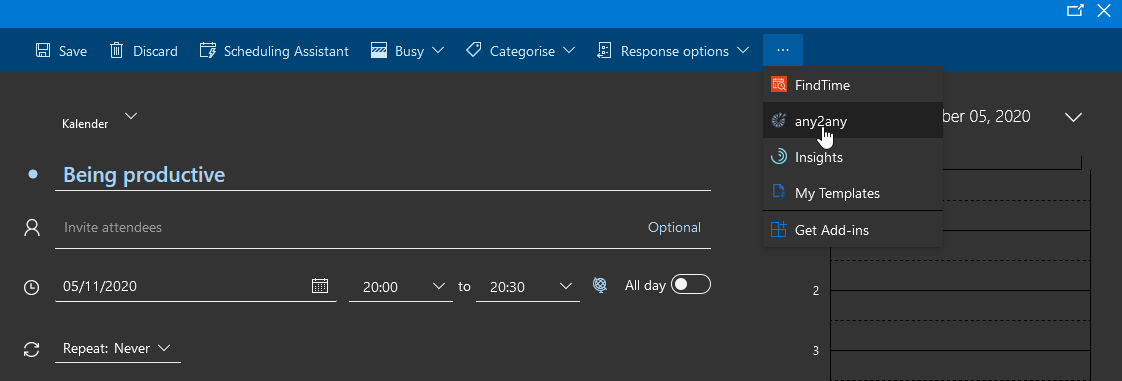
The any2any outlook add-in is only visible on the scheduling view of outlook. To start scheduling a visit, proceed as follows:
Outlook client
The outlook client offers several ways to create a meeting request. The most common ways are described below.
Via “New Item”
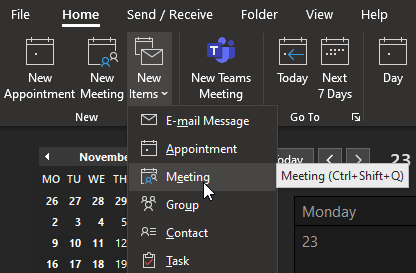
The fastest way to generate a meeting can be reached by selecting the New Items ribbon button on outlooks home tab. From there, select Meeting As shown below the hotkey for the action is: Ctrl+Shift+Q (Note: Hotkeys are language specific)
Via Calendar View
Switch outlook to the calendar view, you can do so by clicking the calendar icon on the bottom-left menu bar:

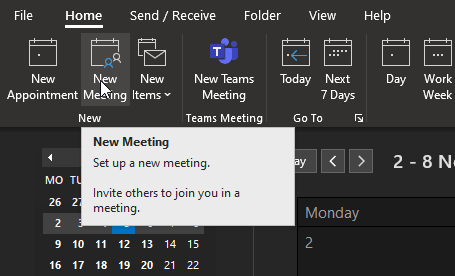
Here, there are multiple ways to schedule a meeting: From the calendar ribbon on the home tab, select New Meeting (as shown below):
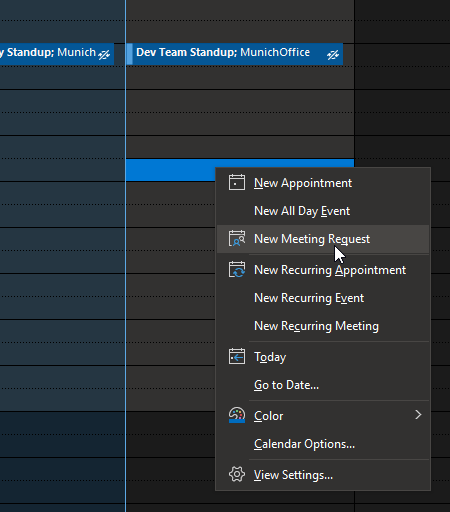
Alternatively, select a timeslot in your calendar, right click, and select New Meeting Request (as shown below)
OWA (Outlook web app)
Log into OWA, the site can be reached at: https://outlook.live.com/owa/
Alternatively you can also reach the site via Microsoft’s office portal, which can be reached at: https://www.office.com.
Here, simply click on the Outlook symbol: 
Switch to outlooks calendar view by clicking on the calendar icon on the bottom-left menu (as shown below)
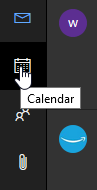
Note that the menu may be vertical or horizontal, but it can always be found on the bottom left.
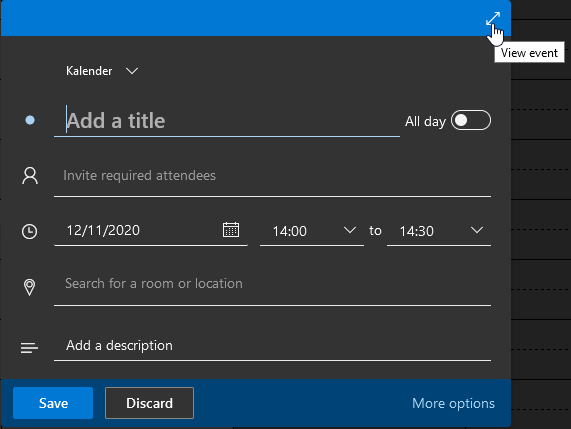
In the calendar view, left click any timeslot in your calendar to open the minimized version of the even creation window.
Note that the minimized event window does not offer any controls to reach add-ins and needs to be expanded to full view.
You can do so by either hitting the View event Icon on the top right (as shown below), or by clicking on More options on the bottom right of the window.
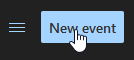
Alternatively, the event creation window in its full view can also be reached directly by clicking the New event button New event button on the top-right (as shown below)
In the event creation window, the any2any add-in can be reached via the top-right 3-dot menu (as shown below)