Add-in Overview
This section provides an overview of the add-ins components.
The add-in pane
Once opened, the any2any outlook add-in is displayed on the right-hand add-in pane:
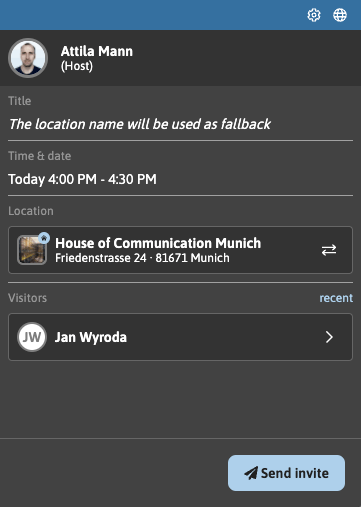
Top Menu

The cog-icon on the right side of the top menu can be used to view general information about the add in:
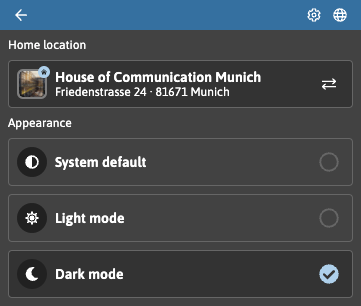
You can return to the main view, by clicking on the Arrow-icon on the top left.
Clicking on the icon World-icon on the right side of the top menu will open the any2any platform in your default browser.
The web-version offers additional functionality, for more information please consult the platform guide any2any platform
Please note that the add-in does not send any visit information you may already have entered in the add-in to the platform when you were leaving for the web version. If you would like to edit a visit you created via the add-in, you need to send the invite via the add-in first.
Time & Date

Here, the time and date of the planned invite is displayed. Note that any time changes done in outlooks controls are reflected here: Changing the time in outlook will change the time in the add-in. Simply use outlooks time settings to select the time window you prefer:

If your contacts are part of the same tenant, or a linked tenant, Outlooks Scheduling assistant can also be used to easily find the right meeting time.
Location
This element displays the currently selected location the visit is created for:
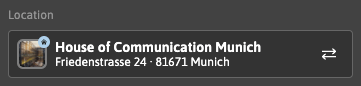
By clicking on the Switch-icon on the right side you can select any location you have access to:
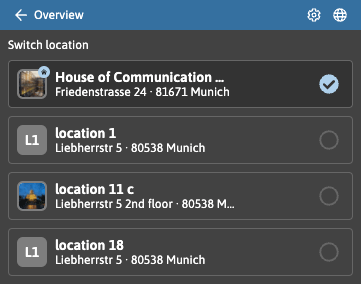
Please note that the location cannot be set via outlooks location selection in the current version of the add in.
Visitors
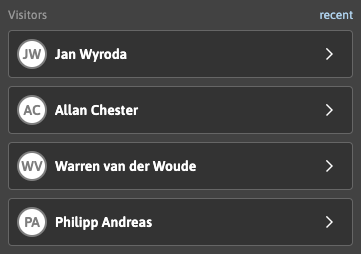
Here, all added visitors are displayed.
Clicking on the link recent opens a search for recent visitors:
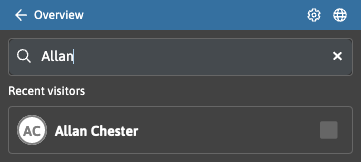
Here you can simply start typing the name of the visitor you would like to find, and the add-in will display any fitting results after entering at least two letters.
To add a recent visitor, click on the checkbox to the right of the name and then on the Add 1 selected visitors button on the bottom:
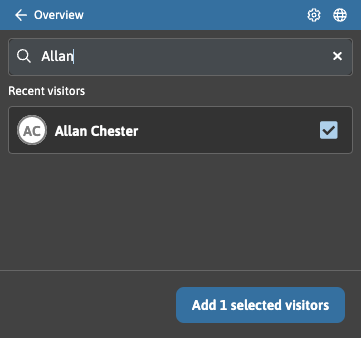
Adding visitors this way will return you to the main view.
Visitor details
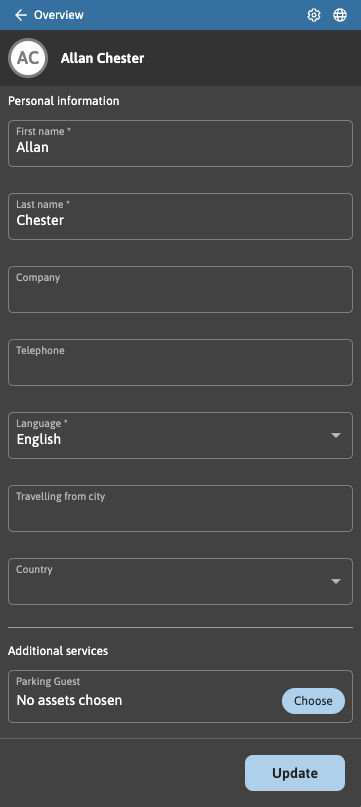
You can add or update any relevant information and click the Update button to save the changes. Updating the information will return you to the main view. Adding additional information can improve the resulting visitor experience.
Additional Services
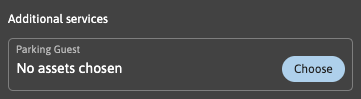
Additional services are customizable additional inputs linked to the selected location. As displayed above they may be used to offer booking options for any assets linked to the location, or any freely configurable input. Any additional asset is set per visitor.