Event
Events are visits, asset bookings or a combination of both. A simple event has a host, one or more visitors and any additional services that the visitors may need (example parking, catering etc) and optionally the use of one or more assets booked to a cost centre. Additionally, visits can be sent out as an invitation to the visitors who receive an email containing a calendar entry and a link to the full view of the resulting experience as well as an Apple wallet entry for their iPhone (the same wallet can be used by Android users).
Events can also be used for the booking/reservation of assets for yourself (or on behalf of one of your contacts). Different types of assets can be booked, for example parking spaces, desks, pool cars etc. Optionally events allow for the addition of attendees - each attendee will then receive an email containing a calendar entry and a link to the full view of the resulting experience as well as an Apple wallet entry for their iPhone (the same wallet can be used by Android users).
Inviting a Guest
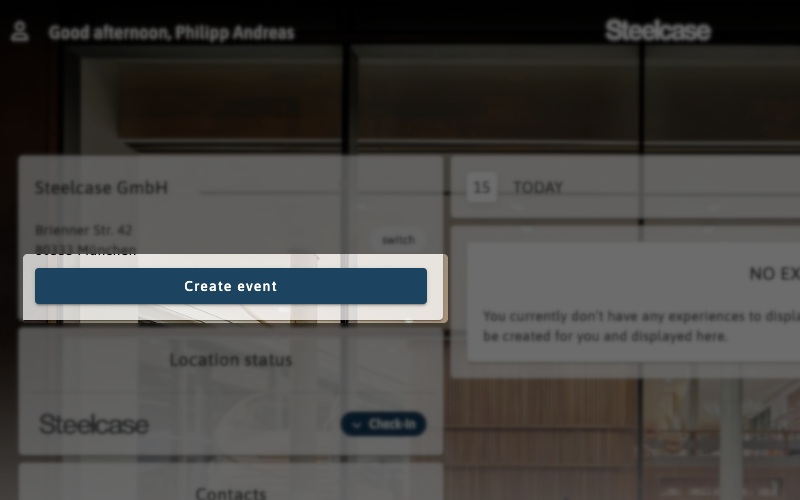
To invite a Guest click on the Create event button on the dashboard page.
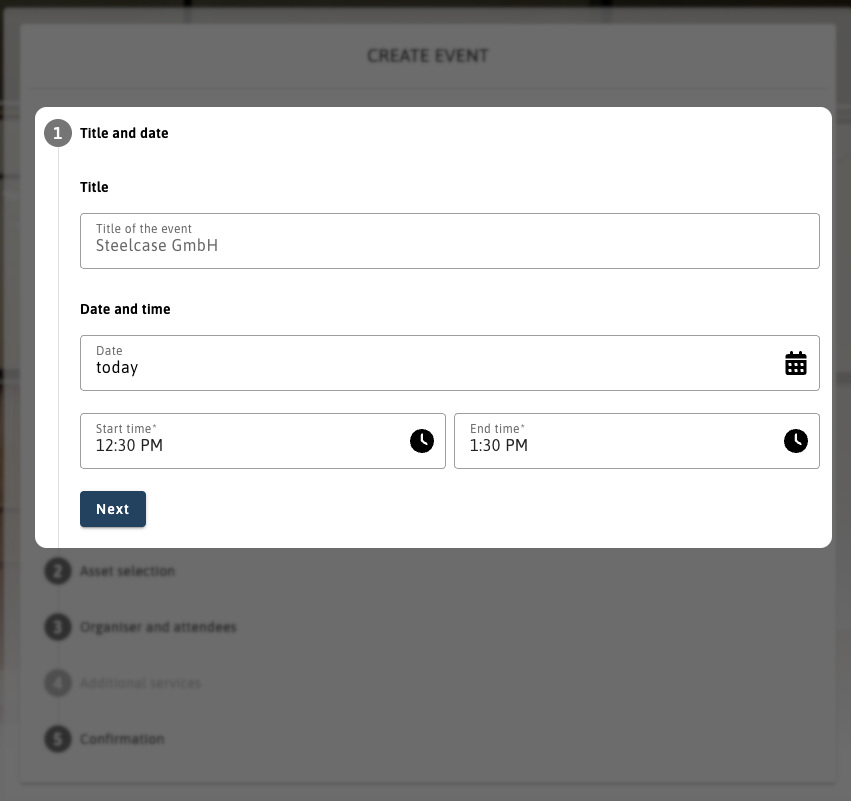
Select a title, date and time of the event.
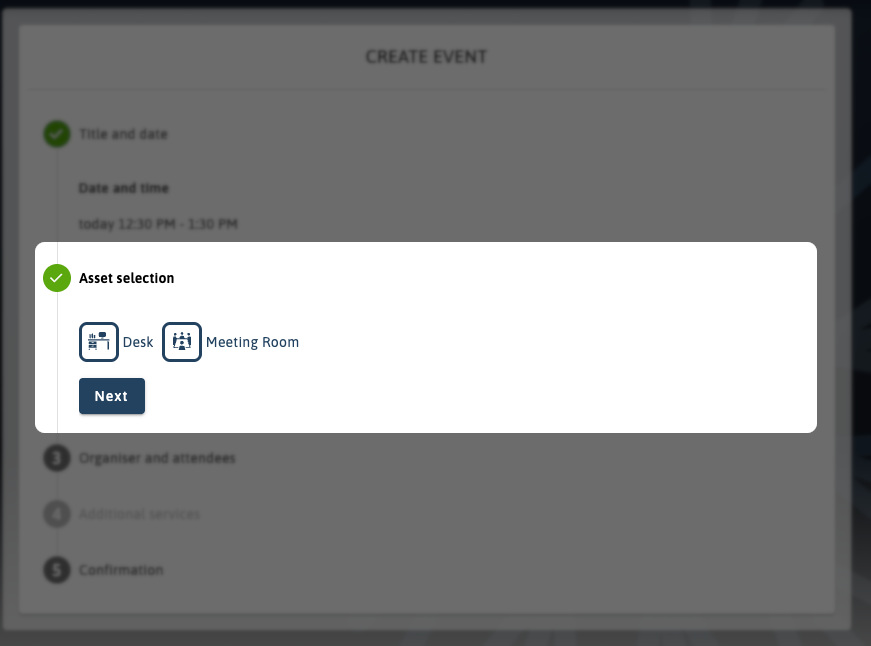
Optionally select an asset category to book, this applies to all guests, and is useful for booking, for example, meeting rooms.
A list of bookable assets will be shown as well as their availability. The date and time can be changed to find an available asset.
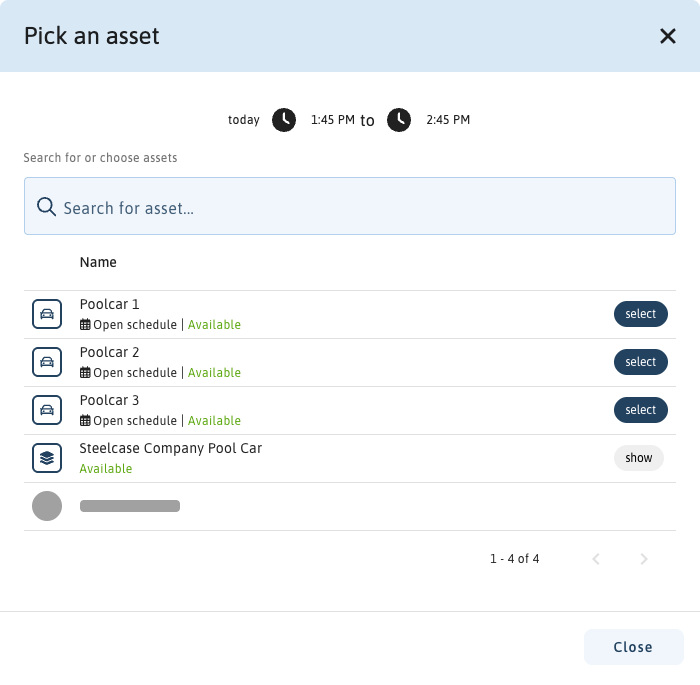
Certain assets are grouped together, as shown below. The list can be expanded and selected as with a normal (non group) asset.
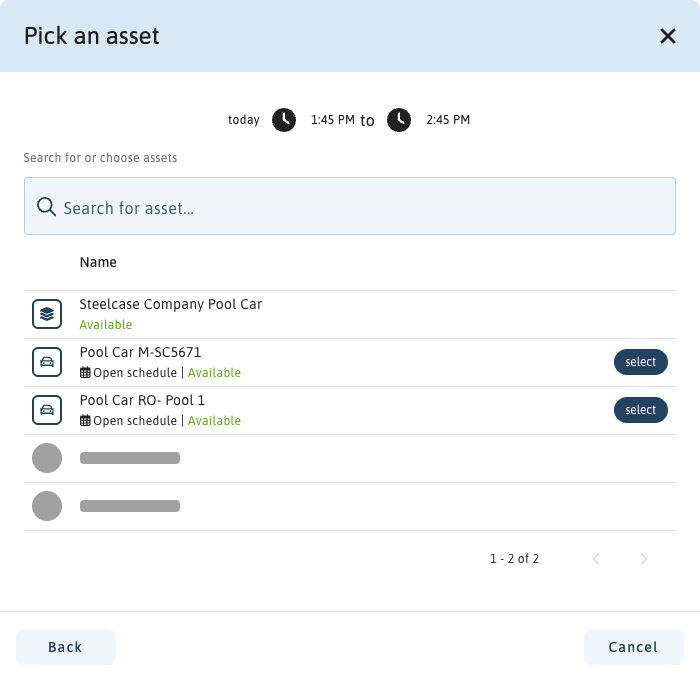
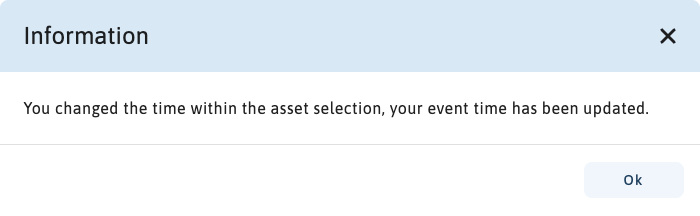
If you change the date during asset selection you will be notified that the time has changed.
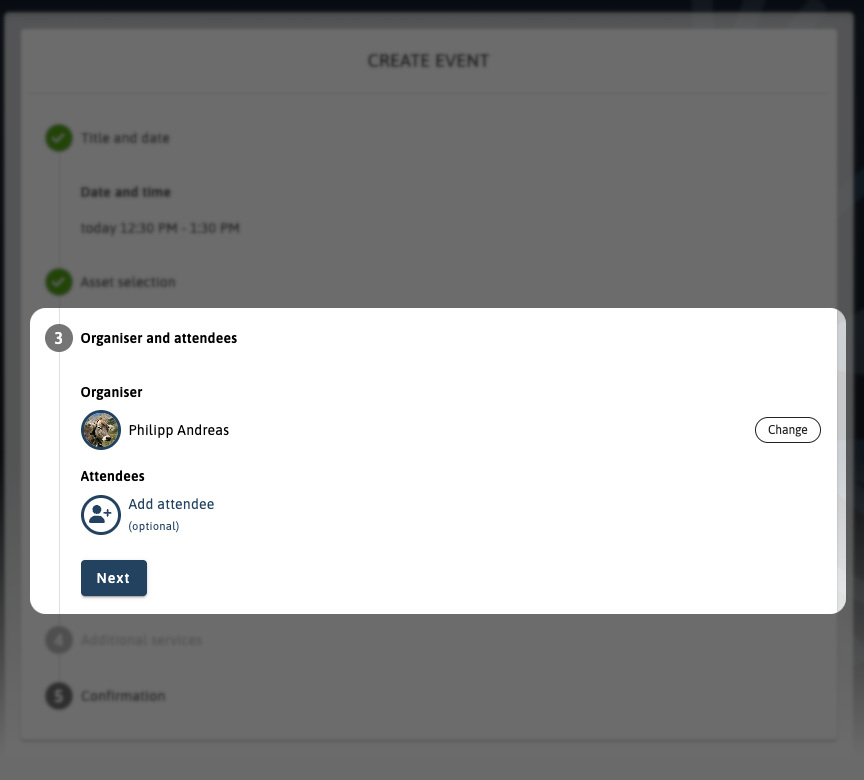
Change the host/organiser if you are booking on behalf of someone and add guests/attendees. These are optional if used to book an asset for the host/organiser.
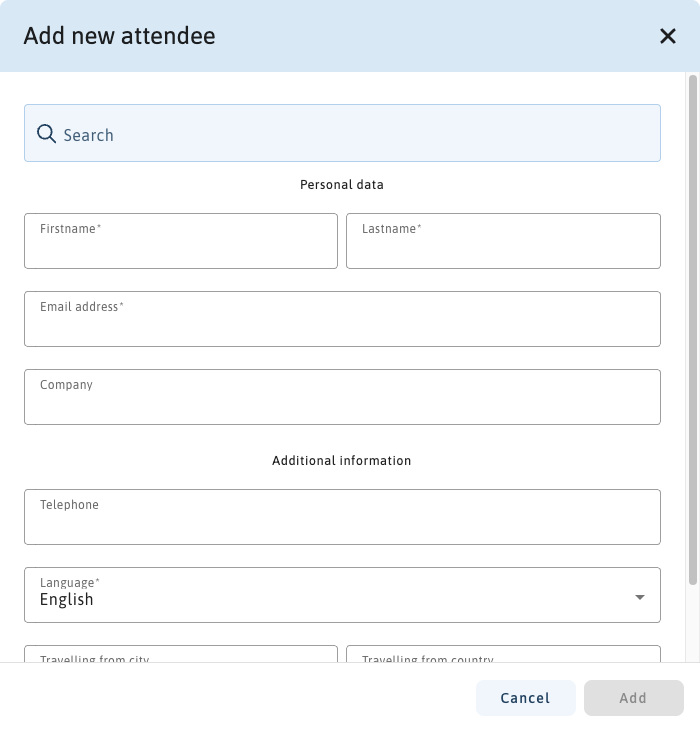
Complete the attendee details for each guest. Using the search bar above you can search and select recent attendees to automatically fill in their information. The first name, last name and email are required here, all other fields are optional.
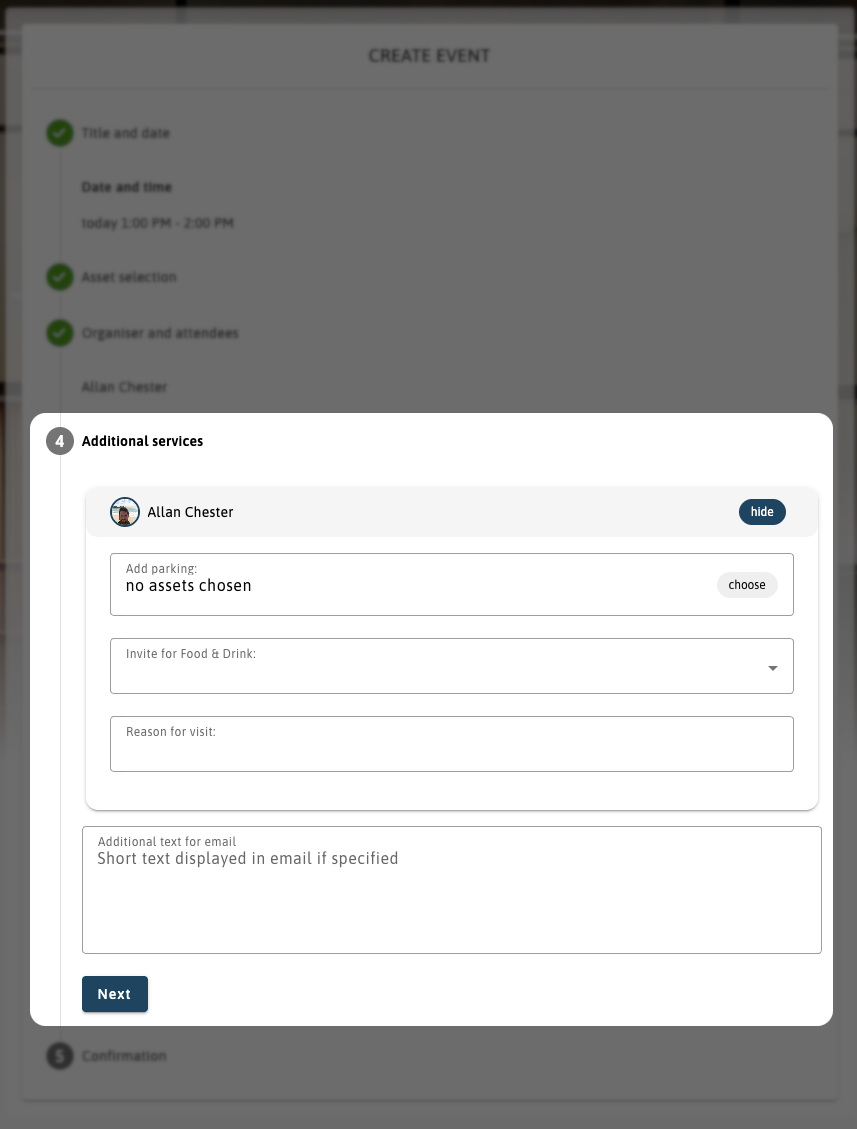
If available for the location, additional services can be added per attendee by clicking on the show / arrow next to their name (see below). Email options and additional text can be selected and entered here.
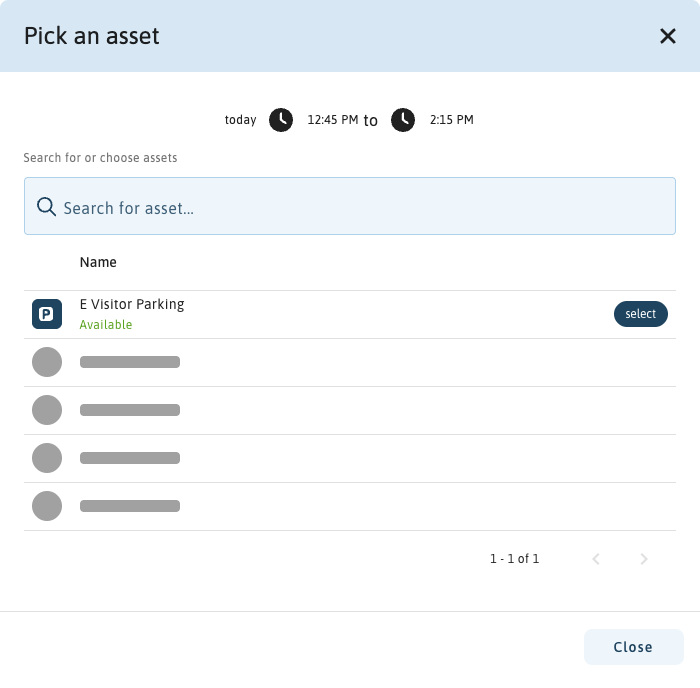
A window will pop up showing the services and options available.
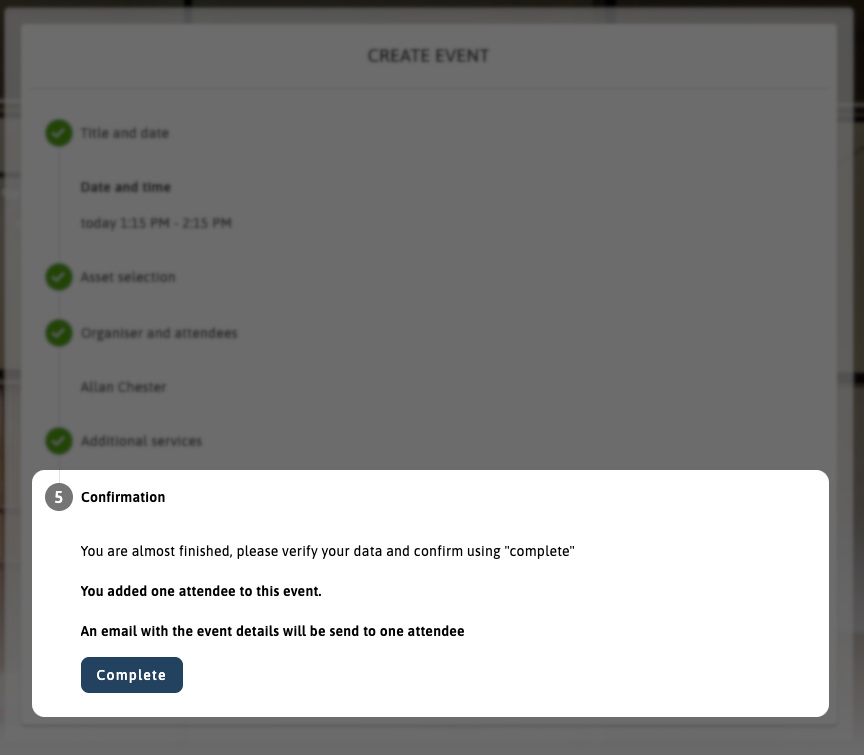
The summary will be shown allowing you to complete the process or go back and modify any details.
Viewing existing entry
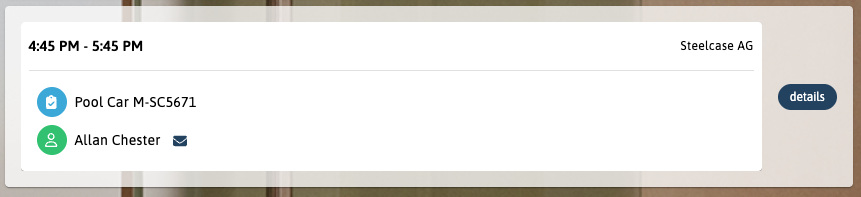
Once a event has been created, it can be seen in the appointment feed panel on the dashboard. More details can be opened by clicking on the “details button.”
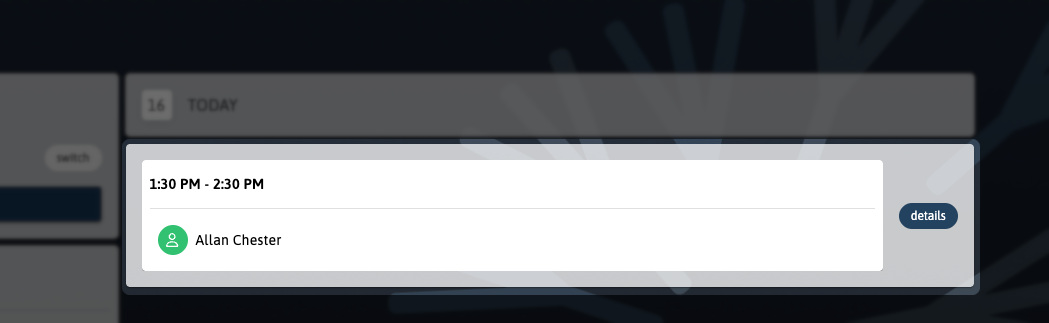
If you selected an asset for the whole event this will be displayed too.
Viewing existing entry details
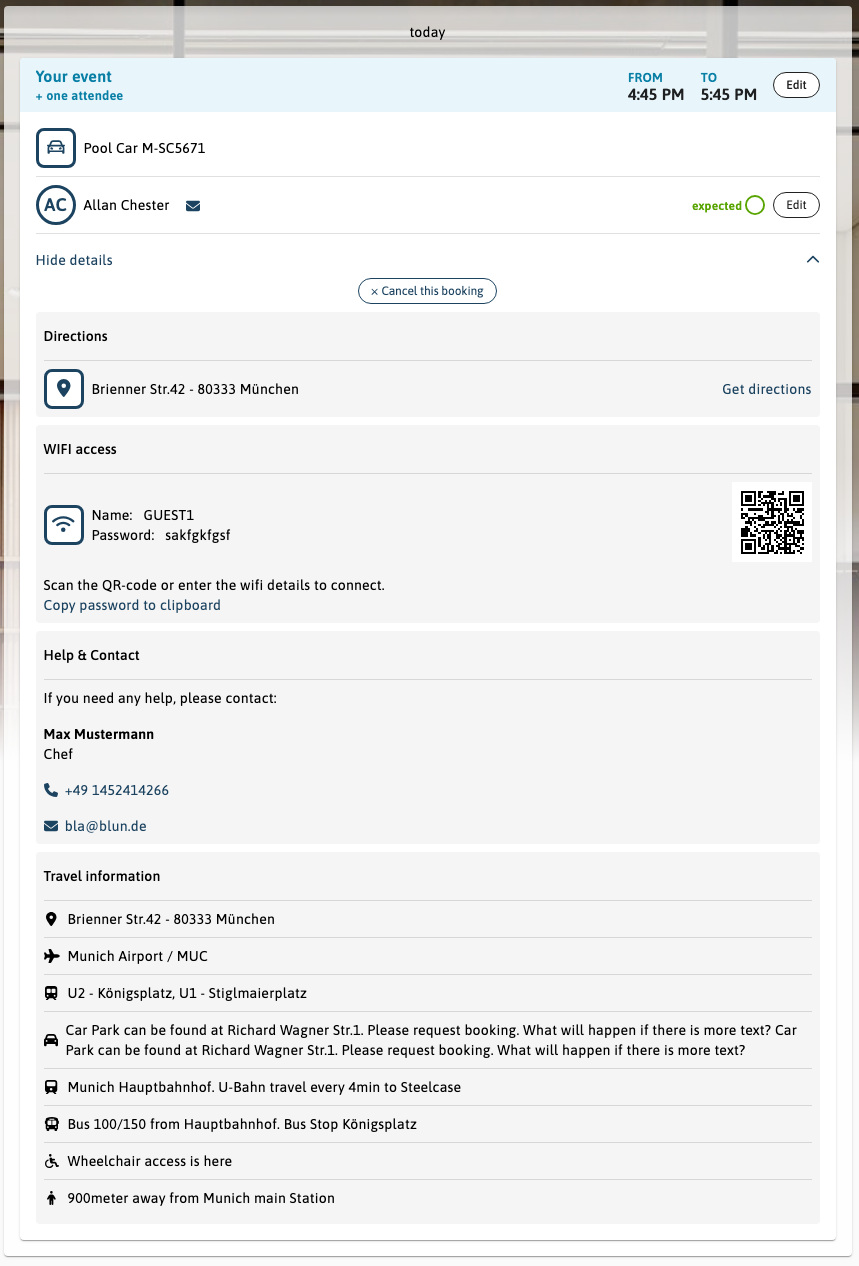
The detailed view shows the list of event with their status and the chance to edit event details or cancel the entire event.
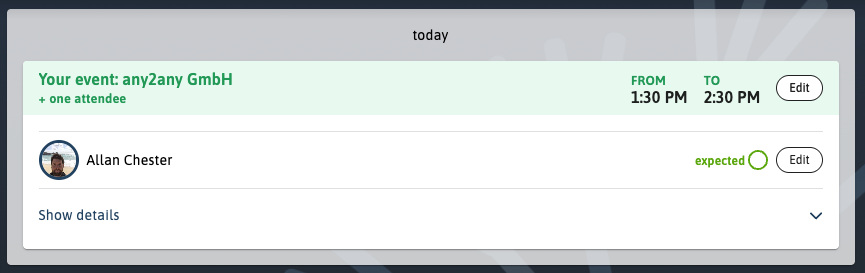
The experience summary is shown, additional information can be seen by clicking on the “Show details” bar:
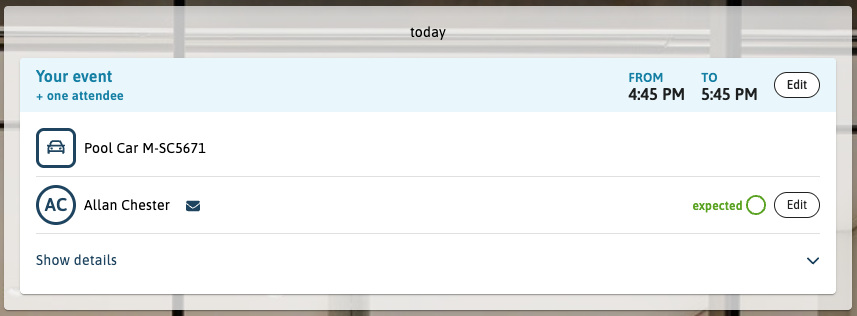
Here the full experience details are shown with any additional information needed: